PDF Q&A is a classical example of using RAG. Content of PDF files are used to provide context for an LLM to answer queries.
The complete source is available on GitHub JavaAIDev/pdf-qa.
Prerequisites
Java 21
A vector database. Chroma used in the sample.
Install Chroma using
pip install chromadb.Start Chroma server using
chroma run.Or use the Docker Compose file to start Chroma.
Ollama to run local models, or use OpenAI.
Load PDF
The first step is to load content of the PDF file into the vector store. Spring AI provides PagePdfDocumentReader to read content of PDF files. The result of read method is List<Document>. This list of Documents is then passed to a TokenTextSplitter to split into chunks. Chunks are then saved to the vector store.
PDFContentLoader is a CommandLineRunner, so it imports the PDF content after the application starts. To avoid duplicated content, a marker file is created after first success import. Subsequent imports will be skipped.
package com.javaaidev.pdfqa;

import java.nio.file.Files;
import java.nio.file.Path;
import org.slf4j.Logger;
import org.slf4j.LoggerFactory;
import org.springframework.ai.reader.pdf.PagePdfDocumentReader;
import org.springframework.ai.transformer.splitter.TokenTextSplitter;
import org.springframework.ai.vectorstore.VectorStore;
import org.springframework.boot.CommandLineRunner;
import org.springframework.core.io.FileSystemResource;

public class PDFContentLoader implements CommandLineRunner {

  private static final Logger LOGGER = LoggerFactory.getLogger(PDFContentLoader.class);
  private final VectorStore vectorStore;

  public PDFContentLoader(VectorStore vectorStore) {
    this.vectorStore = vectorStore;
  }

  public void load(Path pdfFilePath) {
    LOGGER.info("Load PDF file {}", pdfFilePath);
    var reader = new PagePdfDocumentReader(new FileSystemResource(pdfFilePath));
    var splitter = new TokenTextSplitter();
    var docs = splitter.split(reader.read());
    vectorStore.add(docs);
    LOGGER.info("Loaded {} docs", docs.size());
  }

  @Override
  public void run(String... args) throws Exception {
    var markerFile = Path.of(".", ".pdf-imported");
    if (Files.exists(markerFile)) {
      LOGGER.info("Marker file {} exists, skip. Delete this file to re-import.", markerFile);
      return;
    }
    load(Path.of(".", "content", "Understanding_Climate_Change.pdf"));
    Files.createFile(markerFile);
  }
}Q&A
Implementing question and answering is quite simple using Spring AI. Spring AI provides a built-in advisor QuestionAnswerAdvisor. All we need to do is including this advisor when sending requests. This can be done by using the defaultAdvisors method of ChatClient.Builder.
package com.javaaidev.pdfqa;

import org.springframework.ai.chat.client.ChatClient;
import org.springframework.ai.chat.client.advisor.QuestionAnswerAdvisor;
import org.springframework.web.bind.annotation.PostMapping;
import org.springframework.web.bind.annotation.RequestBody;
import org.springframework.web.bind.annotation.RestController;

@RestController
public class QaController {

  private final ChatClient chatClient;

  public QaController(ChatClient.Builder builder, QuestionAnswerAdvisor questionAnswerAdvisor) {
    this.chatClient = builder.defaultAdvisors(questionAnswerAdvisor).build();
  }

  @PostMapping("/qa")
  public QaResponse qa(@RequestBody QaRequest request) {
    return new QaResponse(chatClient.prompt().user(request.input()).call().content());
  }

  public record QaRequest(String input) {

  }

  public record QaResponse(String output) {

  }
}
Ollama or OpenAI
This sample application uses Ollama by default. We can switch to OpenAI by using a different Spring profile openai.
-Dspring.profiles.active=openaiBoth dependencies of Ollama and OpenAI are included in the Spring Boot project. In the default configuration application.yaml, OpenAI is disabled.
spring:
  application:
    name: pdf-qa
  threads:
    virtual:
      enabled: true
  ai:
    ollama:
      chat:
        enabled: true
        options:
          model: "phi3"
          temperature: 0
      embedding:
        enabled: true
        options:
          model: "bge-large"
    openai:
      chat:
        enabled: false
      embedding:
        enabled: false
    vectorstore:
      chroma:
        collectionName: pdf-qa
        initializeSchema: true
In the configuration of openai profile, Ollama is disabled.
spring:
  ai:
    ollama:
      chat:
        enabled: false
      embedding:
        enabled: false
    openai:
      api-key: ${OPENAI_API_KEY:demo}
      chat:
        enabled: true
        options:
          model: gpt-3.5-turbo
          temperature: 0.0
      embedding:
        enabled: true
        options:
          model: text-embedding-3-small
Test
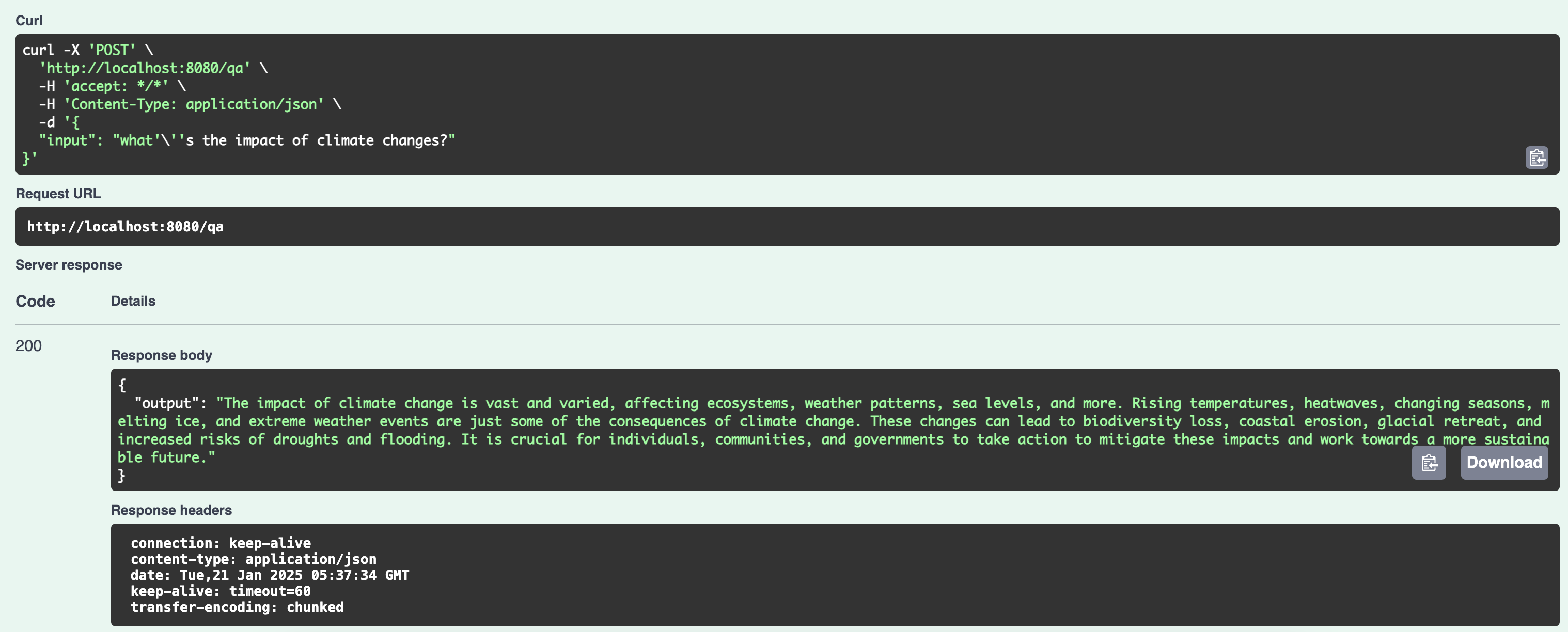
Start the server and use Swagger UI to test the API.
Below is the screenshot of using Swagger UI to test the API.